Updated July 16, 2026
Published June 7, 2026, 7 min read
Best Webcam for YouTube & Streaming (2026): Clean Video, No Studio
Nothing kills a new channel faster than a filming process with friction. A USB unit that is always plugged in and always ready removes the friction entirely. Three researched picks by budget, plus the one Logitech setting almost everyone misses.

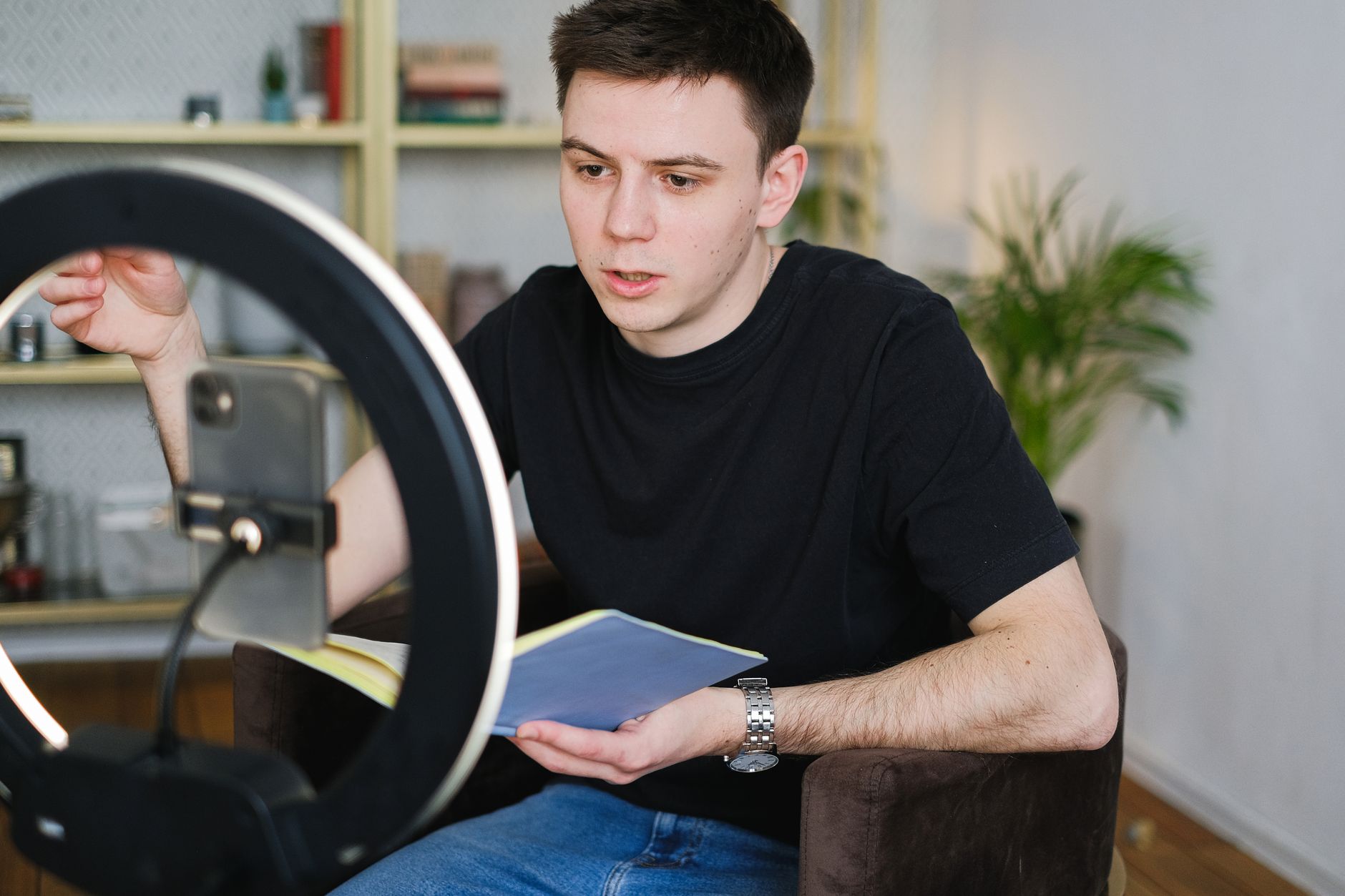
If you film at a desk, tutorials, commentary, reactions, or live streams, a webcam is the simplest route to clean professional video. No batteries, no memory cards, no menus. You plug it in and you are recording. For most people starting out, that beats a fancier camera that stays in its box because setup feels like homework.
Three picks at three budgets below, what each is actually for, and the sixty second setup.
As an Amazon Associate, CheckTheWorth earns from qualifying purchases. Product prices and availability shown on Amazon are accurate as of the time of purchase and are subject to change.
How I picked these. I have not filmed with every unit on this page, so I am not dressing these up as hands on reviews. They are chosen from specs, price, and what thousands of buyers report after months of real use, one tight budget option, one proven everyday pick, one premium step up. Check the live price and recent reviews on Amazon before you commit.
Quick Comparison
| Pick | Resolution | Best for | Price |
|---|---|---|---|
| EMEET Dual-Camera | 1080p (dual) | Tutorials, desk + overhead shots | Budget |
| Logitech C920x Pro HD | 1080p | The proven all-rounder | Most Popular |
| HaiweiTech AutoFocus | 1080p (wide) | Streamers wanting sharper, wider video | Premium |
EMEET Dual-Camera Webcam
A 1080p unit with a second top down lens built in, so you can show your face and your desk or keyboard at once. Auto framing keeps you centred, and it is fully plug and play. Tutorial and unboxing channels get a two angle setup for one small price.
Check price on AmazonLogitech C920x Pro HD Webcam
The most trusted creator cam ever made: crisp Full HD, a glass lens, dual stereo mics, and software control over framing and focus. The safe, proven choice for talking head videos and streams.
Check price on AmazonHaiweiTech AutoFocus Webcam
True autofocus and a wide field of view, so you stay sharp while you move and fit more of your setup in frame. A real upgrade for full time streamers who want better video without graduating to a camera rig.
Check price on Amazon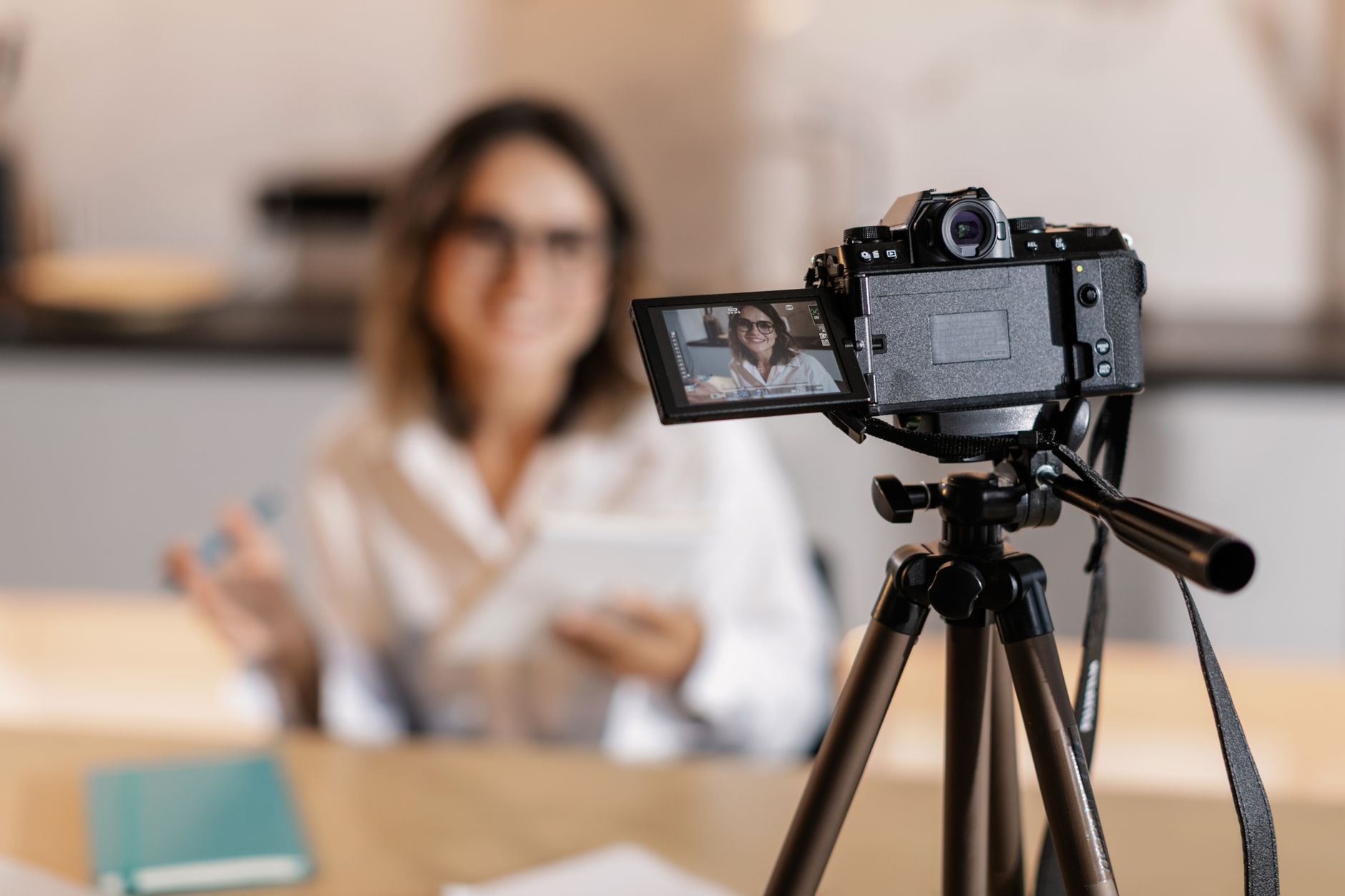
Webcam vs Camera, the Honest Decision
The USB option wins on one thing that matters more than image quality: it is always ready. Always plugged in, nothing to charge, nothing to transfer. Friction is the real reason new creators stop filming, and this removes all of it.
A dedicated rig earns its price only when you film away from the desk: outdoors, walk and talks, or anything where you want blurry background depth. If that is you, the vlogging camera guide covers that path. Everyone else can stop shopping after this page.
The Specs That Actually Matter
- 1080p minimum. Full HD is the sweet spot: sharp enough to look pro, light enough that it will not choke your stream or upload.
- Focus you can lock. Continuous autofocus sounds great until it "hunts" and blurs every time you hold a product up. The C920x lets you lock it, which is exactly why editors recommend it for demos.
- Field of view control. Wider fits more of the room, software zoom lets you fill the frame with just you.
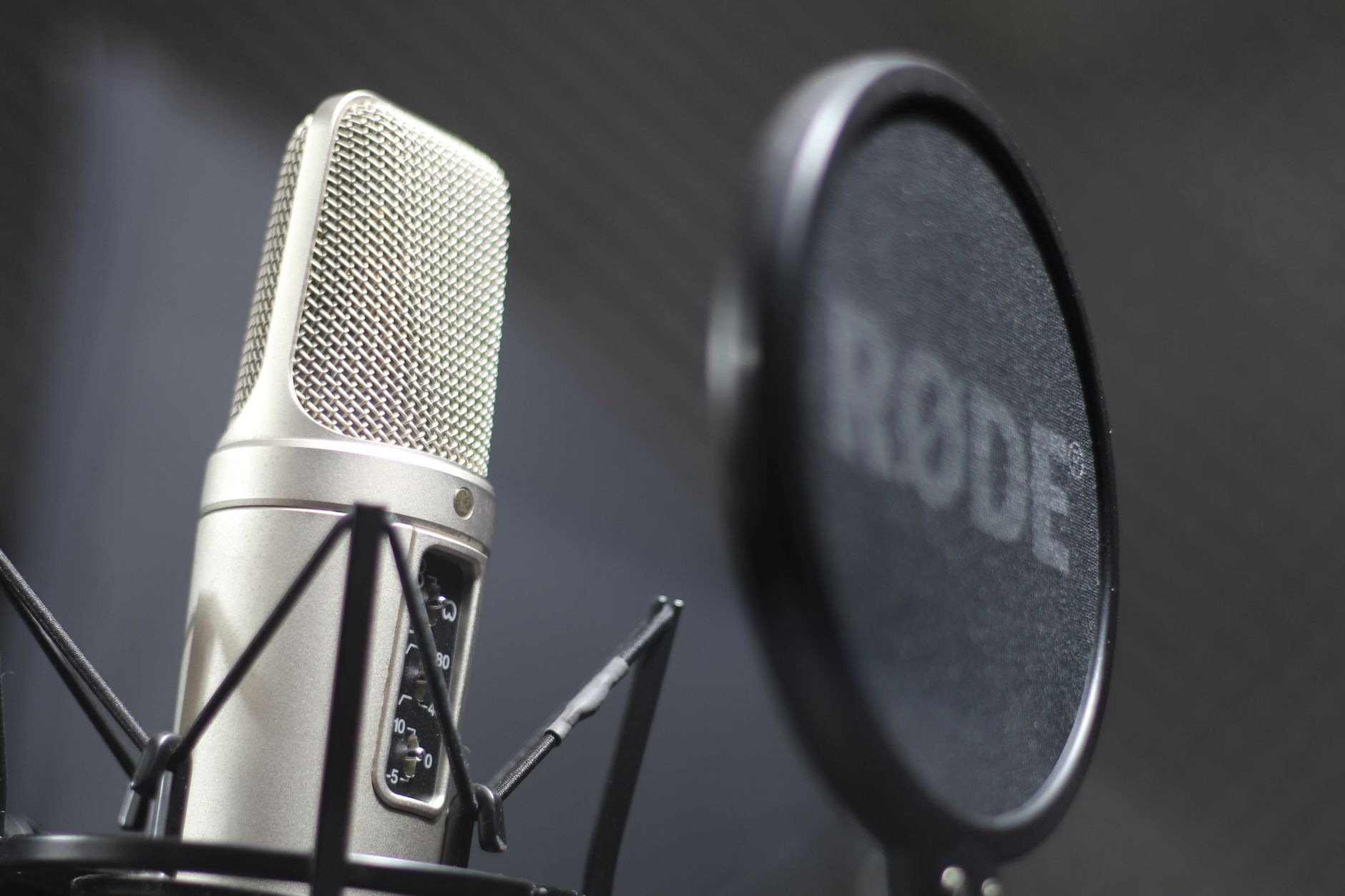
- Treat the built in mic as a backup. Every unit here has one, and a dedicated budget microphone beats them all. Viewers forgive average video, they do not forgive bad audio.

Setup, Genuinely Under a Minute
Plug into USB and wait a few seconds, Windows and macOS install it automatically. Open OBS, Zoom, Meet, or your recording app and pick it as the camera source. Clip it to the top of your monitor at eye level, centre yourself, record.
The one step people skip: for the C920x, install Logitech Capture or Logi Tune, set your framing, and turn off continuous autofocus. Locked focus is the difference between crisp video and the soft, breathing image you see on half the tutorials online.
Per model walkthroughs for PC and mobile live on the Creator Gear Hub.
The Bottom Line
For desk content and streaming, 1080p over USB is the easiest way to look professional, and you can be recording sixty seconds after the box arrives. The C920x is the proven all rounder, the EMEET adds a clever overhead angle for less money, and the HaiweiTech is the sharper, wider upgrade for streamers.
Full specs and setup guides for all three sit on the Creator Gear Hub, or build the whole starter kit with the YouTube equipment for beginners guide.
Frequently Asked Questions
What is the best webcam for YouTube?
The Logitech C920x remains the safe answer: reliable 1080p, a glass lens, and software control over zoom and focus, trusted by millions of creators for a reason. On a tighter budget, the EMEET dual lens model adds a top down second angle that tutorial makers love. Streamers wanting sharper, wider video should look at the HaiweiTech autofocus unit. All three are plug and play over USB.
Is a webcam good enough for a real channel?
For talking head videos, tutorials, screen shares, and streaming, absolutely. 1080p at a desk looks professional, and there are no batteries, memory cards, or menus to manage, which means you actually film instead of fiddling. The upgrade to a dedicated rig only earns its cost when you shoot outdoors or want cinematic background blur.
What about for streaming on a budget?
A 1080p USB model like the EMEET dual lens pick: auto framing keeps you centred, the second overhead angle can show your desk or keyboard, and it works the instant you plug it in. Streamers overspend on video long before their audio deserves it, fix sound first.
How do I set one up?
Plug it into USB, wait a few seconds while Windows or macOS installs it, open OBS or Zoom, select it as the camera source, clip it at eye level, record. One extra step for the C920x: install Logitech's software and lock the focus so the image stops hunting when you gesture. Full guides per model live on our Creator Gear Hub.
Check any YouTube channel's value, free
Live earnings estimates, CPM data, and sponsorship rates. No sign-up needed.

Founder · CheckTheWorth
Fahim built CheckTheWorth himself and runs it on public data and the official YouTube Data API. Every earnings figure here is an estimate, and he says so plainly rather than dressing it up as fact.
Related Articles

By Fahim Mahmood